Remove user or suspend their access
Which user management experience do you have?
Go to Atlassian Administration. Select your organization if you have more than one. You can identify which user management experience you have by checking the Users page.
Centralized | Original |
|---|---|
The Users page doesn’t contain the Site filter. 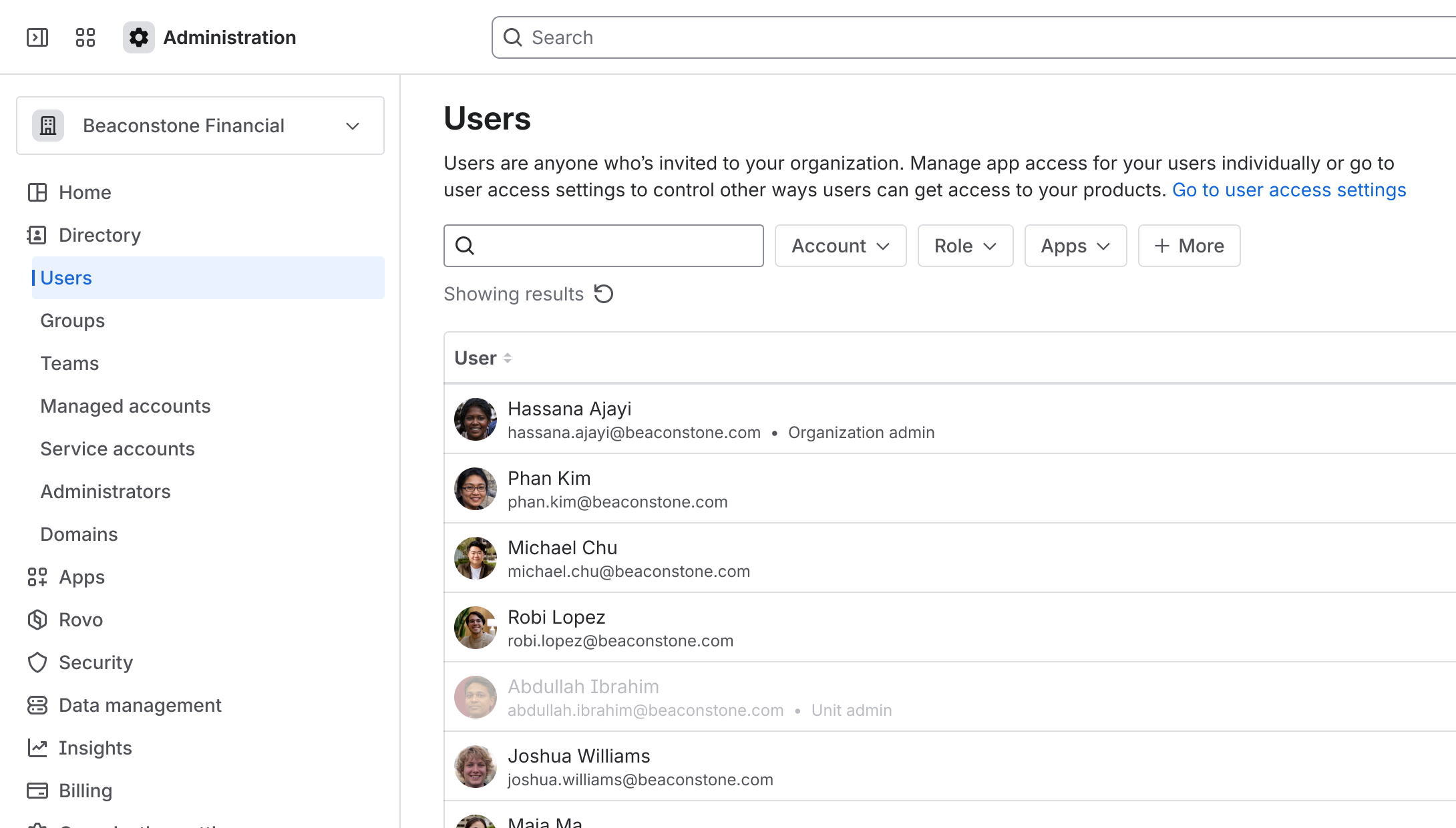 | The Users page contains the Site filter. 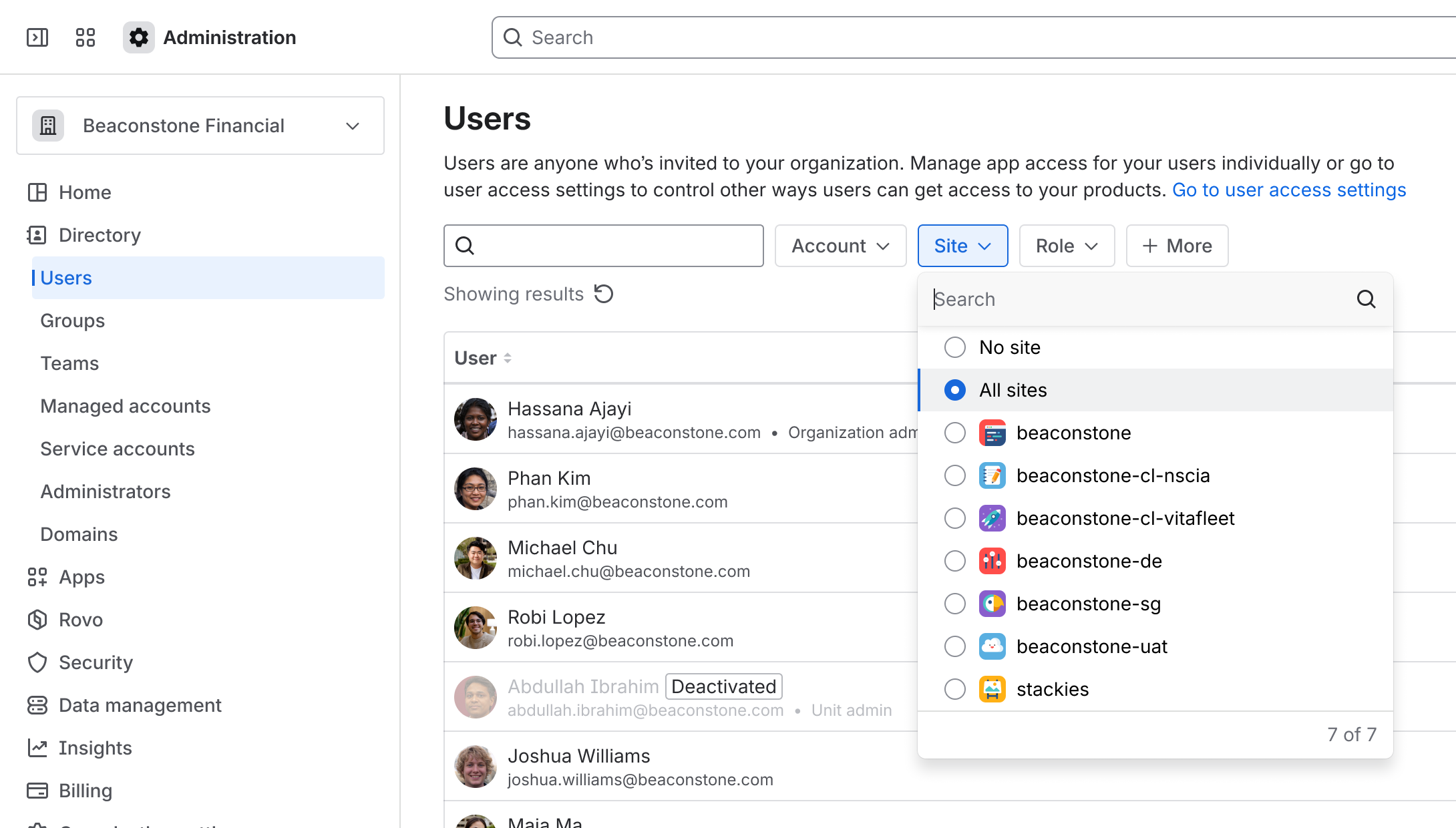 |
Jump to:
Centralized user management content
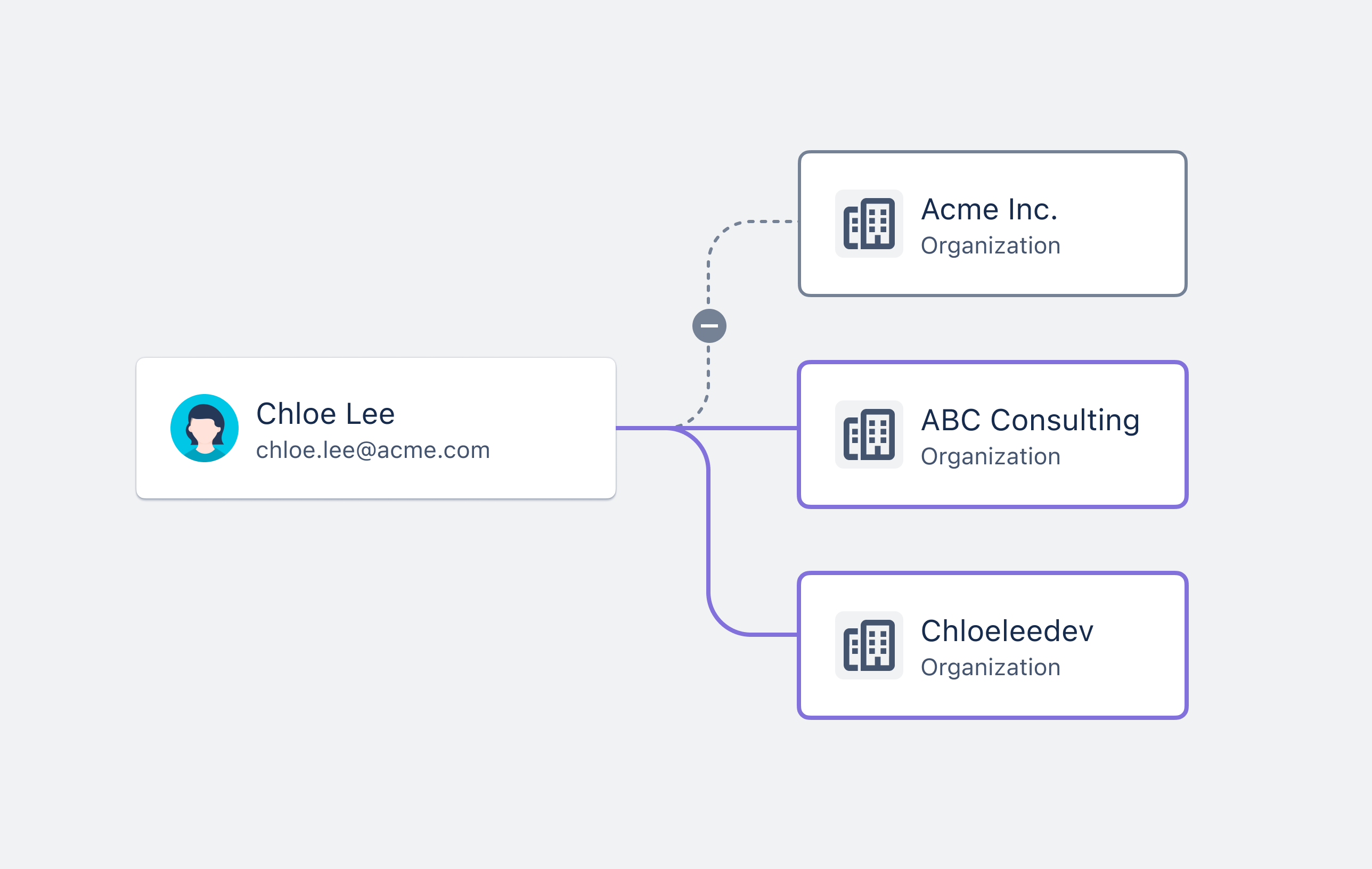
Remove a user if you don’t want them to appear in your organization or have access to your apps anymore. You won’t be billed for a user once they’re removed. You must invite the user to your organization again if you want to reinstate their access your apps. You’ll also need to assign their roles and group memberships again.
Removing a user will remove some of their content, check out Delete your Atlassian account or Delete a Managed Account to see what will be deleted inside your organization when you remove their membership.
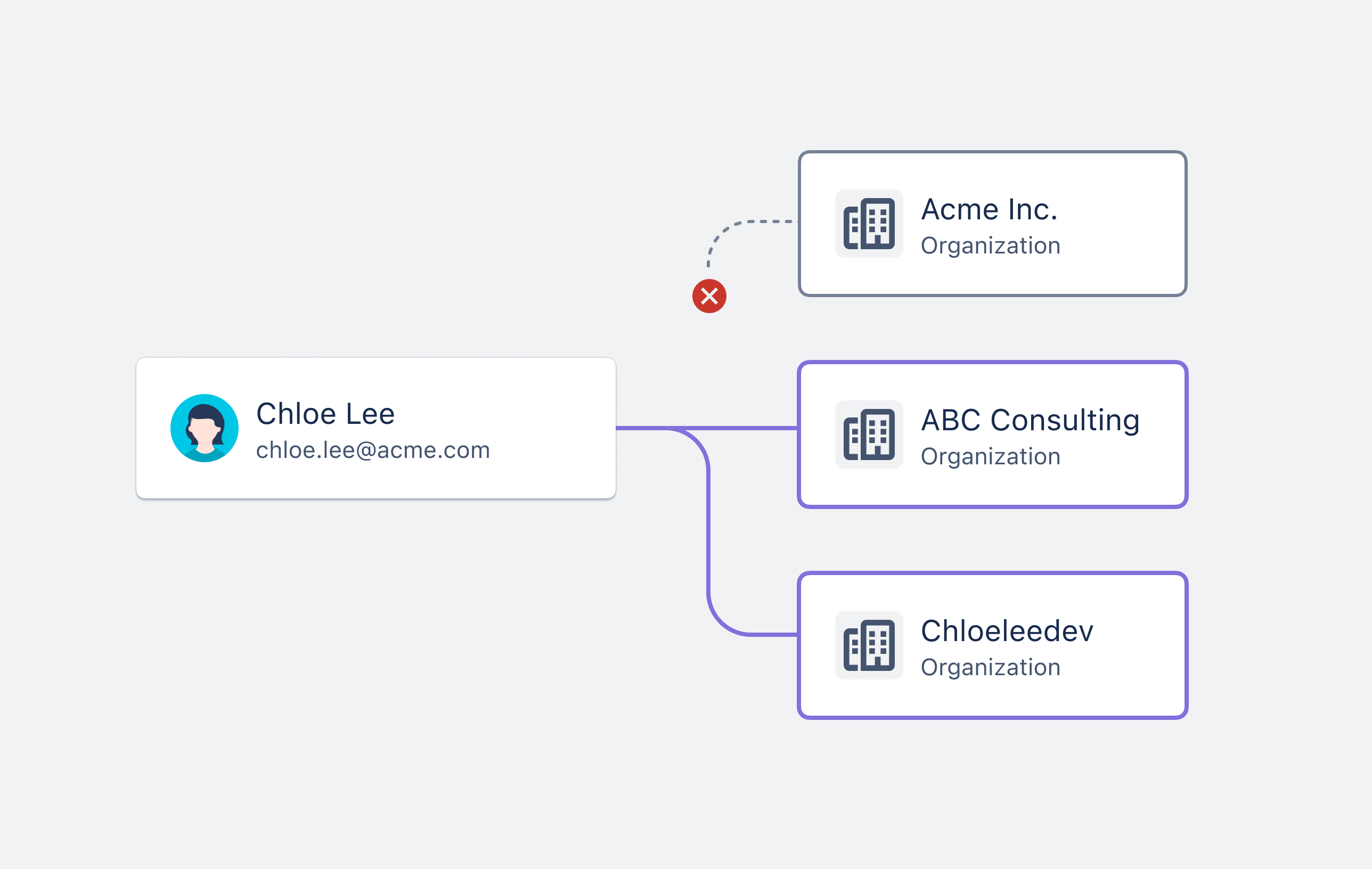
Removing a user doesn’t remove them from other organizations or permanently delete their Atlassian account. You can only permanently delete an account managed by your organization. How to delete a managed account
Suspend access to remove a user’s access to your organization temporarily. You won’t be billed for a user when their access is suspended. Restore access to give the user access to your organization and apps again. They’ll regain their roles and group memberships when this happens.
Remove a user
Who can do this? |
To remove a user from your organization:
Go to Atlassian Administration. Select your organization if you have more than one.
Select Directory, then Users.
Find the user you want to remove.
Select the more actions menu (•••).
Select Remove user.
You can automate this process with the Remove user access API.
Remember to check what content will be removed upon their deletion at Delete your Atlassian account or Delete a Managed Account. Reminder that this is just within your org it does not affect their account outside your organization.
Suspend access
Who can do this? |
To suspend a user’s access to your organization:
Go to Atlassian Administration. Select your organization if you have more than one.
Select Directory, then Users.
Find the user whose access you want to suspend.
Select the more actions menu (•••).
Select Suspend access.
You can automate this process with the Suspend user access API.
Restore access
Who can do this? |
To restore a user’s access to your organization:
Go to Atlassian Administration. Select your organization if you have more than one.
Select Directory, then Users.
Find the user whose access you want to suspend.
Select the more actions menu (•••).
Select Restore access.
You can automate this process with the Restore user access API.
Original user management content
Remove a user if you don’t want them to have access to your site anymore. You won’t be billed for this user on this site once they’re removed. You must invite the user to this site again if you want to reinstate their access to your apps. You’ll also need to assign their roles and group memberships in this site again.
Removing a user will remove some of their content, check out Delete your Atlassian account or Delete a Managed Account to see what will be deleted inside your organization when you remove their membership.
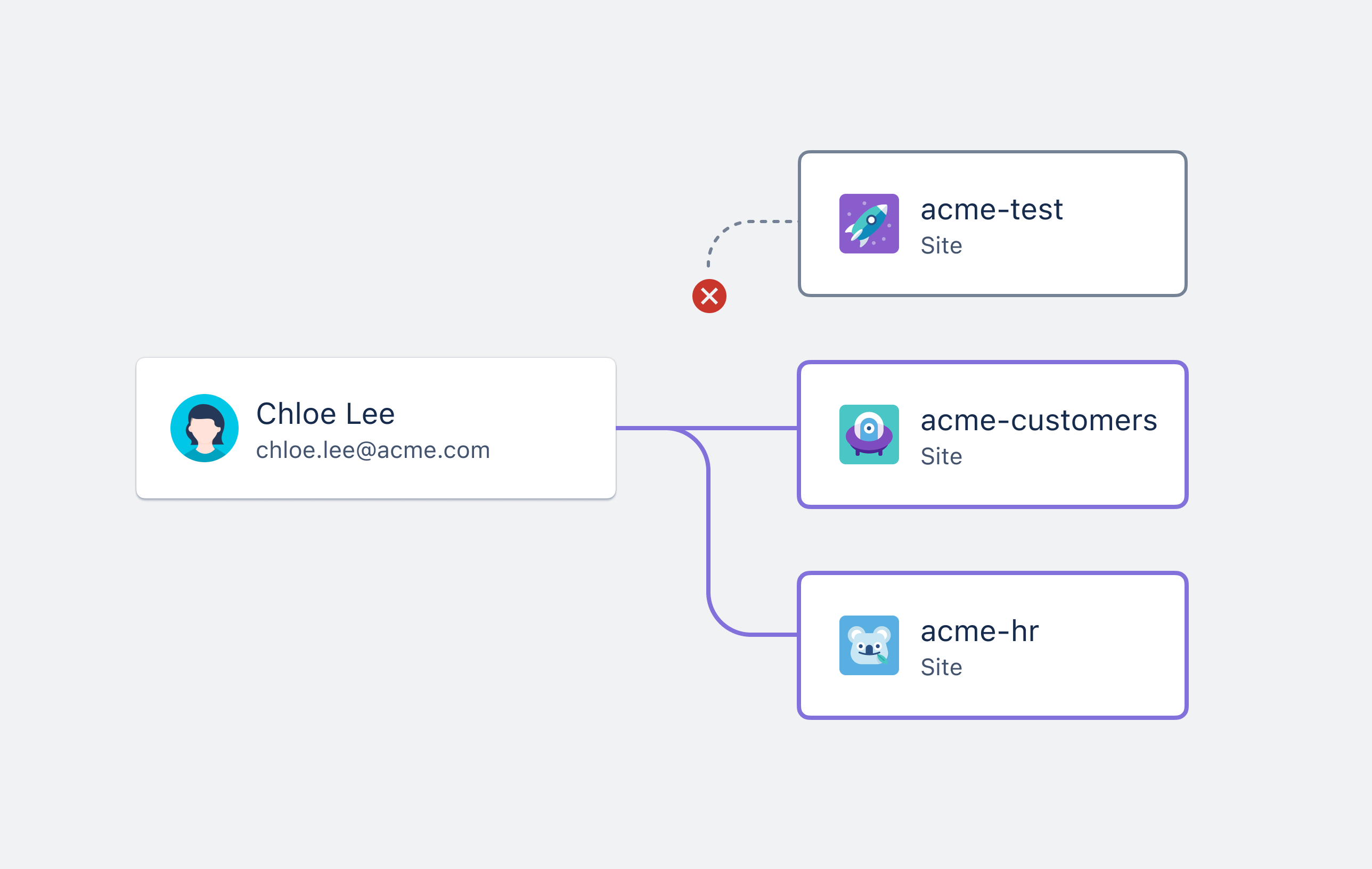
Removing a user doesn’t remove them from other sites in your organization or other organizations and doesn’t permanently delete their Atlassian account. You can only permanently delete an account managed by your organization. How to delete a managed account
Suspend access to remove a user’s access to your site temporarily. You won’t be billed for this user on this site when their access is suspended. Restore access to give the user access to this site and its apps again. They’ll regain their roles and group memberships when this happens.
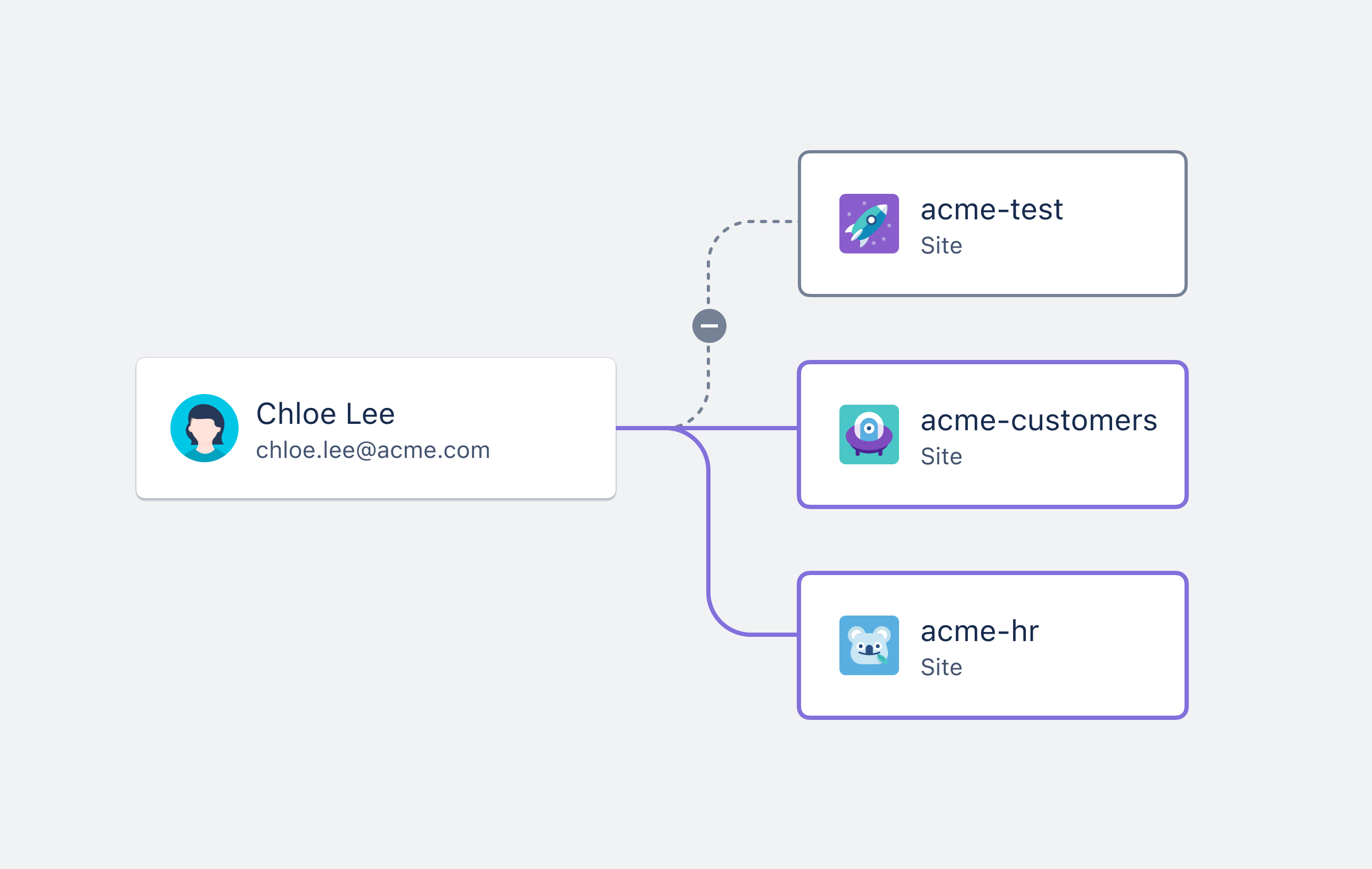
Remove a user
Who can do this? |
To remove a user from your site:
Go to admin.atlassian.com. Select your site if you have more than one.
From the Users page, find the user you want to remove.
Select the more actions menu (•••).
Select Remove user.
Remember to check what content will be removed upon their deletion at Delete your Atlassian account or Delete a Managed Account. Reminder that this is just within your org it does not affect their account outside your organization.
Suspend access
Who can do this? |
To suspend a user’s access to your site:
Go to admin.atlassian.com. Select your site if you have more than one.
From the Users page, find the user whose access you want to suspend.
Select the more actions menu (•••).
Select Suspend access.
Restore access
Who can do this? |
To restore a user’s access to your site:
Go to admin.atlassian.com. Select your site if you have more than one.
From the Users page, find the user whose access you want to restore.
Select the more actions menu (•••).
Select Restore access.
Was this helpful?